
WordPress Site Broken: 7 Top Problems and How to Fix Them
Your wordpress site broken moment almost always arrives at the worst possible time.
Not on a quiet Tuesday morning when you have a spare hour. On the day you sent the newsletter. The morning a new campaign went live. The week a journalist was supposed to feature you.
WordPress powers about 43% of the internet. That is a lot of sites, a lot of plugins, and a lot of things that can go sideways. The good news is that most WordPress problems come from the same short list of causes, and most of them have a clear fix.
“We just need something simple” is statistically the most expensive sentence in web design. We have built sites that started as three clean pages and grew, one email at a time, to eleven. Every added layer is another thing that can break. Every plugin is a dependency. Every theme update is a potential conflict.
TL;DR: Most wordpress site broken moments come from plugin conflicts, failed updates, hosting issues, or security breaches. Identifying which one you are dealing with is half the fix. This guide covers the 7 most common problems and what to do about each one.
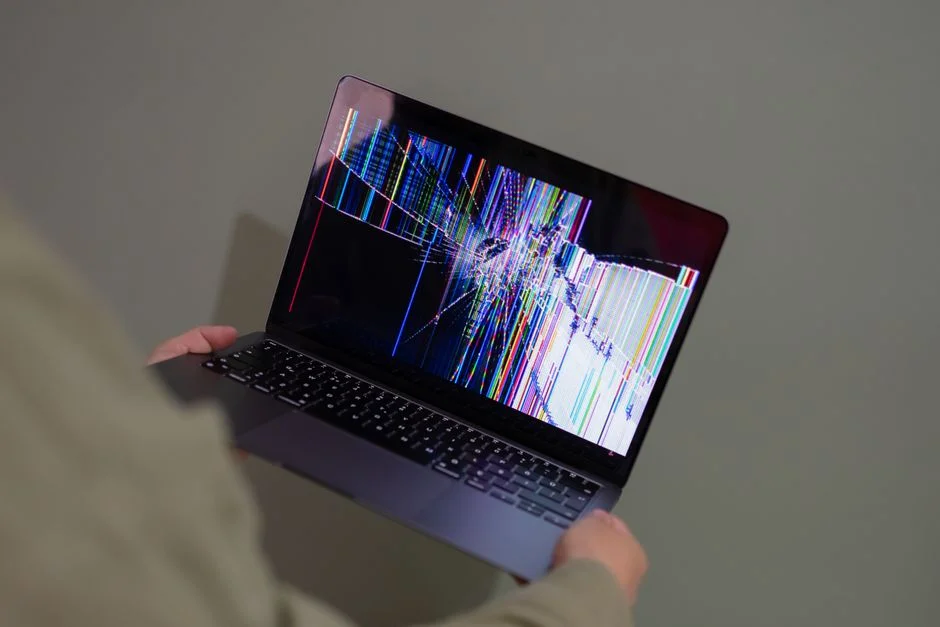
What Does It Mean When a WordPress Site Is Broken?
A broken WordPress site is not always dramatic. Sometimes it is a white screen. Sometimes it is a specific page that throws an error. Sometimes the site loads but the contact form stopped working six weeks ago and nobody noticed.
Before fixing anything, identify what is actually wrong:
- Does the whole site fail to load, or just certain pages?
- Did it break after an update?
- Are you seeing an error message, and if so, what does it say?
- Can you still log into the WordPress dashboard?
The answer to those questions points directly at the cause.
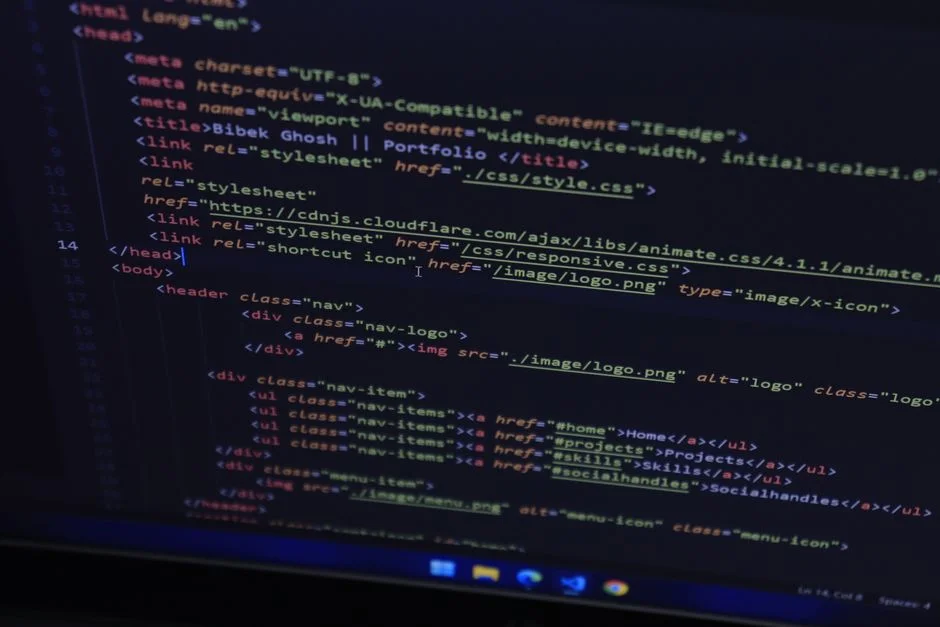
The 7 Most Common WordPress Problems and Their Fixes
1. White Screen of Death
The site loads a blank white page. No error, no content, just nothing. This is almost always a PHP error triggered by a plugin or theme conflict. Fix: enable WP_DEBUG in your wp-config.php file. The error message that appears will tell you exactly which plugin or theme is the problem. Deactivate it.
2. 500 Internal Server Error
A generic server error usually caused by a corrupted .htaccess file, a plugin conflict, or a PHP memory limit being hit. Fix: rename your .htaccess file to .htaccess_old via FTP, then try loading the site. WordPress will regenerate it. If that does not fix it, deactivate all plugins via FTP by renaming the plugins folder.
3. WordPress Site Not Loading at All
The browser times out or shows a connection error. Check your hosting provider’s status page first. If the server is fine, the issue is likely a DNS problem or a redirect loop caused by a plugin. Clear your browser cache and try an incognito window before anything else.
4. WordPress Update Broke My Site
An update to core WordPress, a plugin, or a theme caused something to stop working. Fix: restore from your most recent backup if you have one. If you do not have a backup, this is the moment a care plan becomes very expensive in hindsight.
5. WordPress Plugin Broken or Causing Errors
A plugin you updated or newly installed is conflicting with another. Fix: deactivate the most recently updated plugin. If the site recovers, that plugin is the culprit. Re-enable your other plugins one at a time to confirm which combination breaks things.
6. Login Page Not Working
You cannot access your WordPress dashboard. Fix: clear your browser cookies. Try a different browser or device. If you still cannot get in, you can reset your password directly in the database via phpMyAdmin through your hosting control panel.
7. Images Not Showing or Uploading
Images appear as broken links or the media uploader throws an error. Fix: check your file permissions. The uploads folder in wp-content needs to be writable. Set wp-content/uploads to 755 via your hosting panel or FTP client.
What Should You Do First When Your WordPress Site Breaks?
Before touching anything:
- Take a screenshot of the error
- Note what changed in the last 24 to 48 hours
- Check if you have a recent backup and where it is stored
- Contact your hosting provider to rule out a server issue
Do not start reinstalling WordPress or deleting files until you have ruled out the simpler causes. Most site breaks have a specific cause that takes ten minutes to fix once identified.
FAQ
Can a broken WordPress site fix itself?
No. WordPress sites do not self-repair. If something broke, it will stay broken until a deliberate fix is applied. The site may load partially in some cases, which can make the problem harder to diagnose.
How do I fix my wordpress site if I can’t log in?
Access your site via FTP or your hosting control panel. You can deactivate plugins by renaming the plugins folder, which removes all plugin functionality but usually restores access to the dashboard.
How do I prevent my WordPress site from breaking after updates?
Test updates on a staging environment before applying them to the live site. Take a backup before every update. Use a care plan that includes update management so someone is watching for conflicts when changes are applied.
A broken site is a fixable problem in almost every case. The difference between a ten-minute fix and a full-day recovery usually comes down to whether a backup exists. If yours does not, that is the first thing to change.
Site down and not sure where to start?
Give us a shout. We have seen most of these before and we know the short path to the fix.